Low Battery Life

If you are experiencing the fast draining of your phone battery, it could be for various reasons. Spending time scrolling, liking, and taking pictures all takes a toll on the battery life of our phones. There are things however we can do to maximise the battery life and extend the time between phone charging.

We would always recommend you use an original charger, avoid overheating your phone and always keep your apps and system current by updating to the latest version when notified.

The first step to sorting the problem is to get the facts by checking your battery usage. On an android phone this is by going to settings, device care and then battery. Here you will be able to see the status of your phone and how your battery is being used, next you should carry out the following checks:

1. Phone Display
The brightness of your screen affects your battery use, so we recommend you set it at a low level. You can then adjust the brightness when you need it rather than always having it at a higher level. Next, check the length of time before your display goes into sleep mode and make sure it is on the shortest time setting. Making sure your phone display is not live for longer than it needs to be can save you some battery.

2. Phone Sounds and Notifications
Having keyboard sounds active so that you can hear taps or vibrations when you are using your phone drains the battery. Turn off keyboard sounds and vibrations and make sure your notification settings are for active apps only.

3. Apps
Apps are the greatest offender for battery use, but we also know they are the most convenient functions of your phone, so only have those you use set to active and uninstall apps that you don’t use. For the apps which you use often but drain a lot of battery power, check the notification settings, and reduce the frequency to a low level.

As apps are updated often, it is also advisable to check apps that continue to run in the background and change the settings to ensure only necessary functions remain active.

Some apps have location services active which run continuously and use the battery. Check this setting on all your apps and amend accordingly. Most location services run to send you localised ads and therefore will not affect the performance of the app.

If your phone offers you a “dark mode” for apps this will also reduce battery use and can make it easier to read text.

4. Connectivity
If you use your phone in the car, chances are you have your Bluetooth always set to active. Check this setting and only activate it when needed to prevent unnecessary battery usage.

If you have tried all of the above and are still experiencing battery issues, then we can help. Call us today on 01494 534008 to book an appointment for us to investigate the issue or contact us.
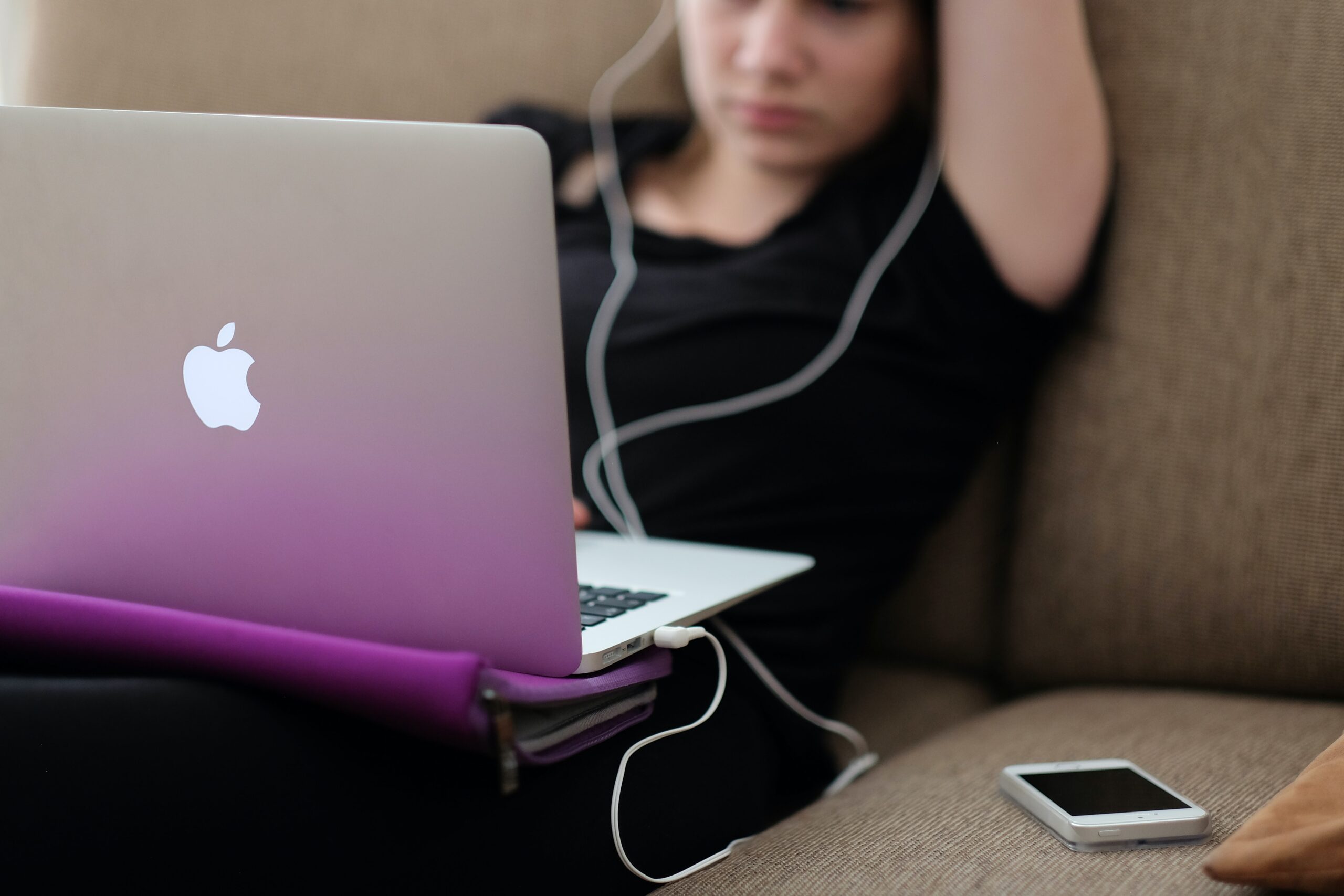
Is your laptop running slowly

Is your Laptop running slowly?

If your laptop or computer is running slowly it doesn’t take long before you lose your patience in dealing with the issue. You assume there is nothing you can do and start looking for a new machine.

However, help is at hand, at Gadget Rehab we can review your machine and offer you practical solutions. If you would like to try to solve the issue yourself first, then follow the steps below which we have put into three categories:

System

The first thing is to shut down your machine and restart it. If you always have your machine in sleep mode, it may be missing vital updates which can slow your machine. This could be the time, switch it off, switch it on again, may just work.

Next, check which programs open on start up. If you have too many set to automatically load on start up, they will add to the time it takes for your machine to be fully operational. You can check this in task manager or the program settings.

Make sure you have anti-virus software installed and run it to check for any viruses that may have found their way onto your machine.

This is also a good time to check all your drivers are up to date. To check, search for the latest versions online and make sure they are installed.

Hardware

If the hard drive on your computer is close to being at maximum capacity this will significantly slow the speed of your machine. Your machine always needs capacity to store and manage temporary files to ensure the smooth running of your programs and the efficient running of your machine. Aim to always have 20% capacity on your hard drive.

To free up space quickly:

  • Empty the recycle bin
  • Delete temporary files and unnecessary files
  • Move large documents to external storage devices such as an external hard drive, USB or to the cloud

Some programs take up a large amount of space on your machine. Programs which are industry specific such as finance or design software can install add-ons which you are not using. Disable the features you do not use.

Software

If you have several tabs open at the same time or a lot of programs running, they are all competing for your machine’s resources. This can put too much pressure on the processing power and cause your computer to slow. To fix this:

  • Close the program completely when you have finished using it
  • Close tabs not in use
  • Bookmark tabs so you can refer to them at another time
  • Check installed programs are not running in the background or have encountered a problem

It is important to keep your software up to date, however, you should only install necessary software updates and disable those that update automatically.

If you are still experiencing issues with your laptop or computer running slowly then it is advisable to make an appointment with us at Gadget Rehab. One of our engineers will be able to look at your machine and find the root cause of the issue. Call us today on 01494534008.